
10.25″ Touch Display
Discover why the 10.25" touch display is the ultimate hub for snowmobilers.


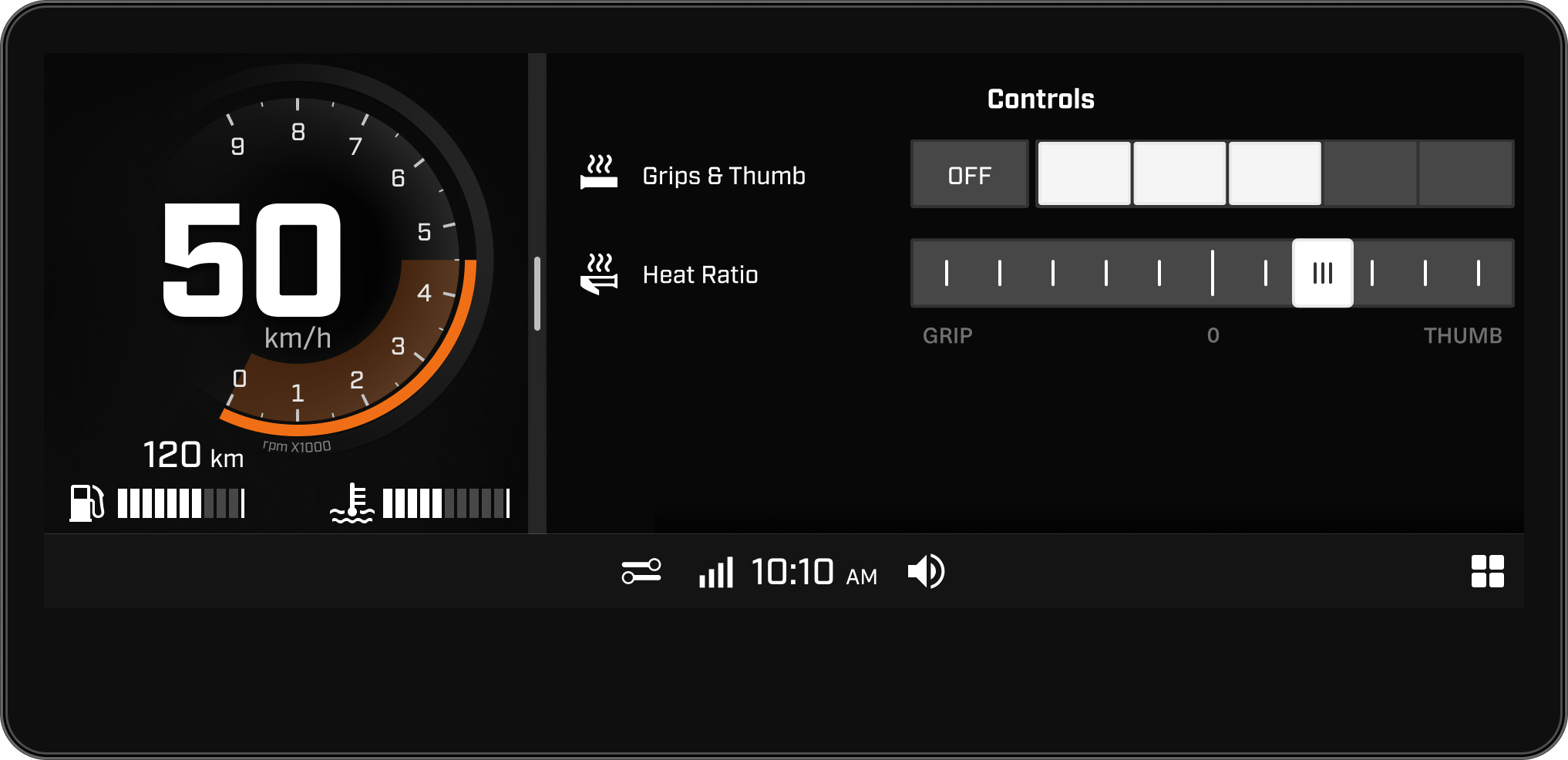
Explore Display's Key features
- Full Gauge
- Applet Menu
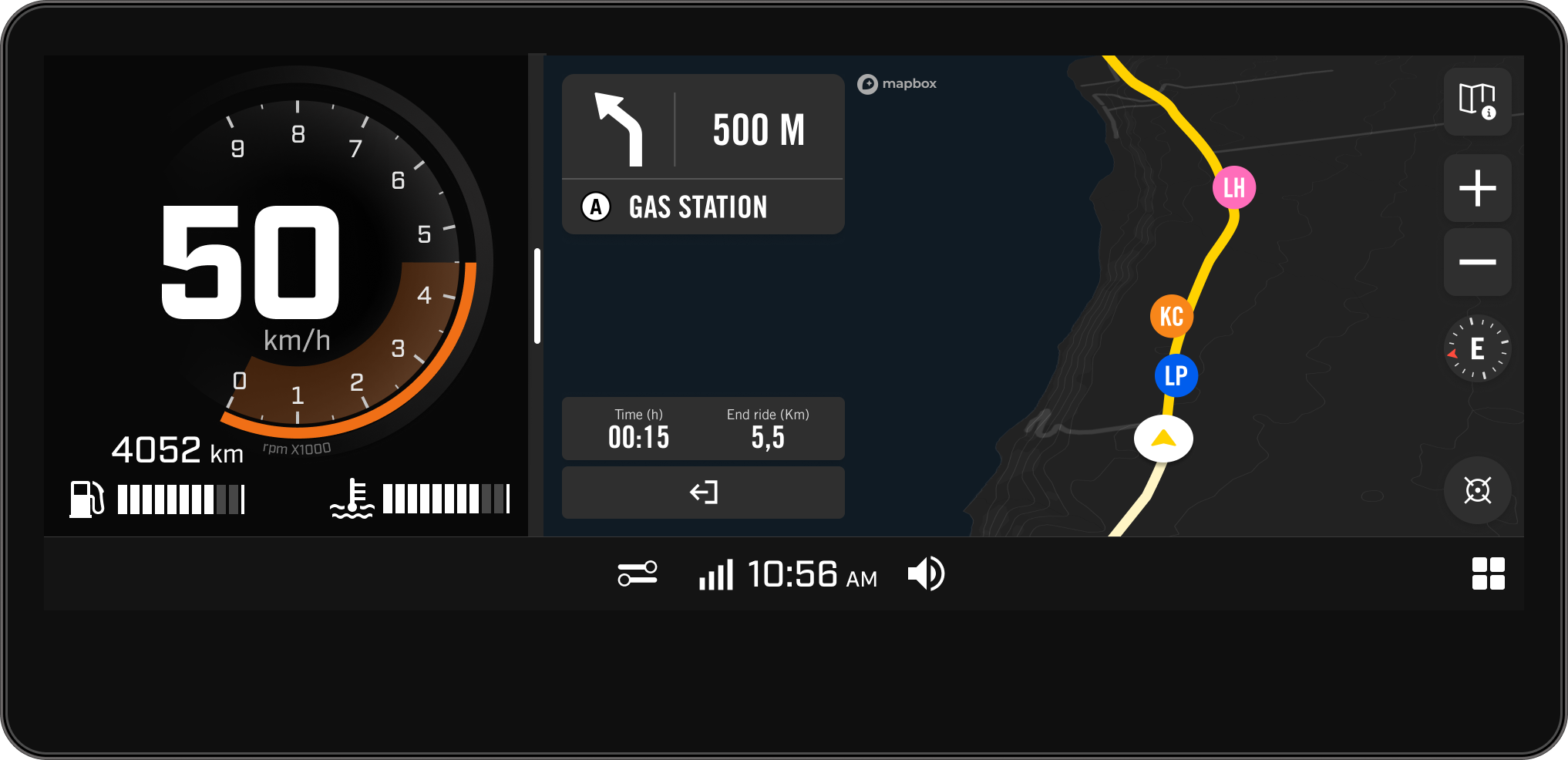
- Navigation
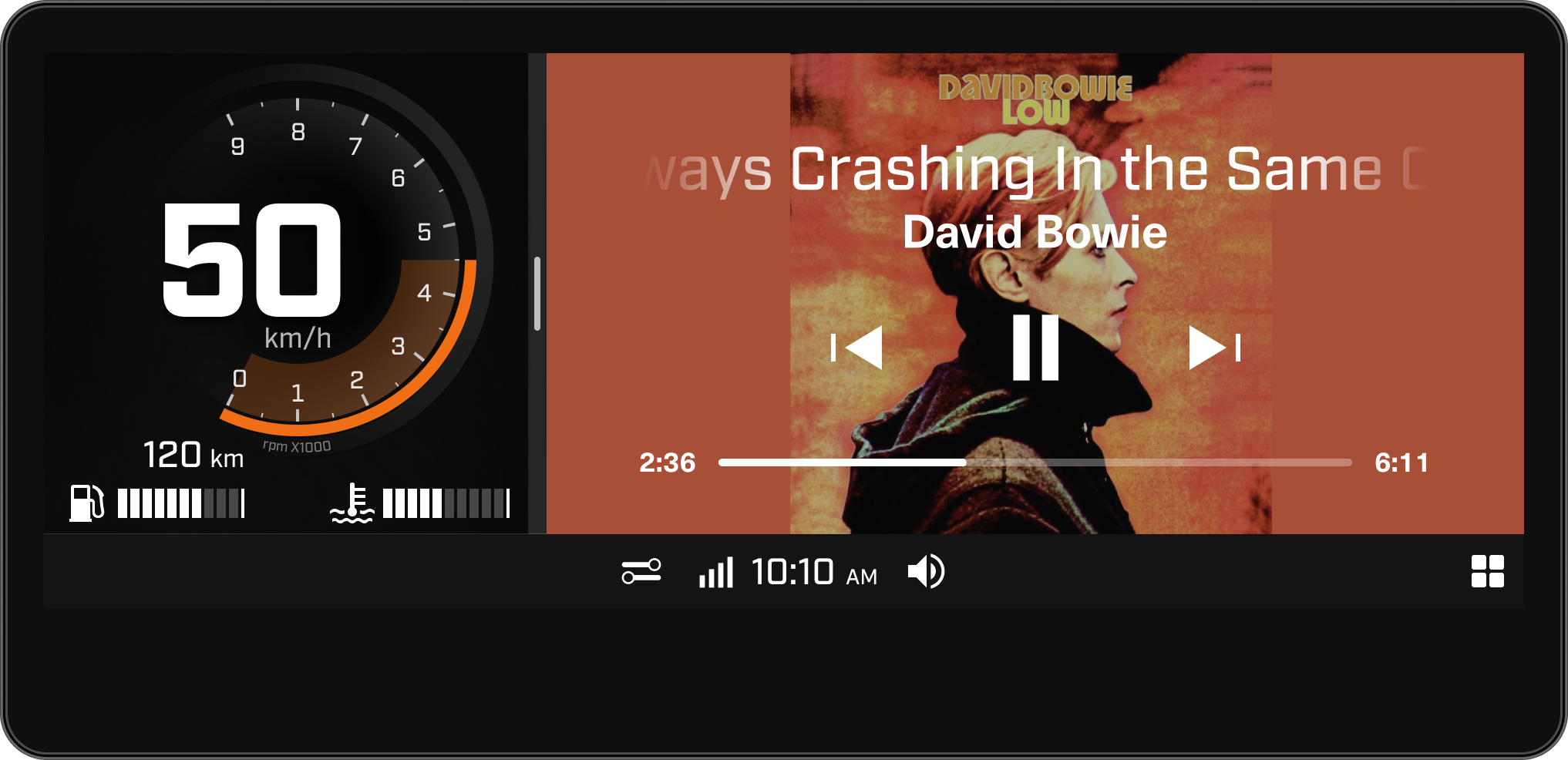
- Media
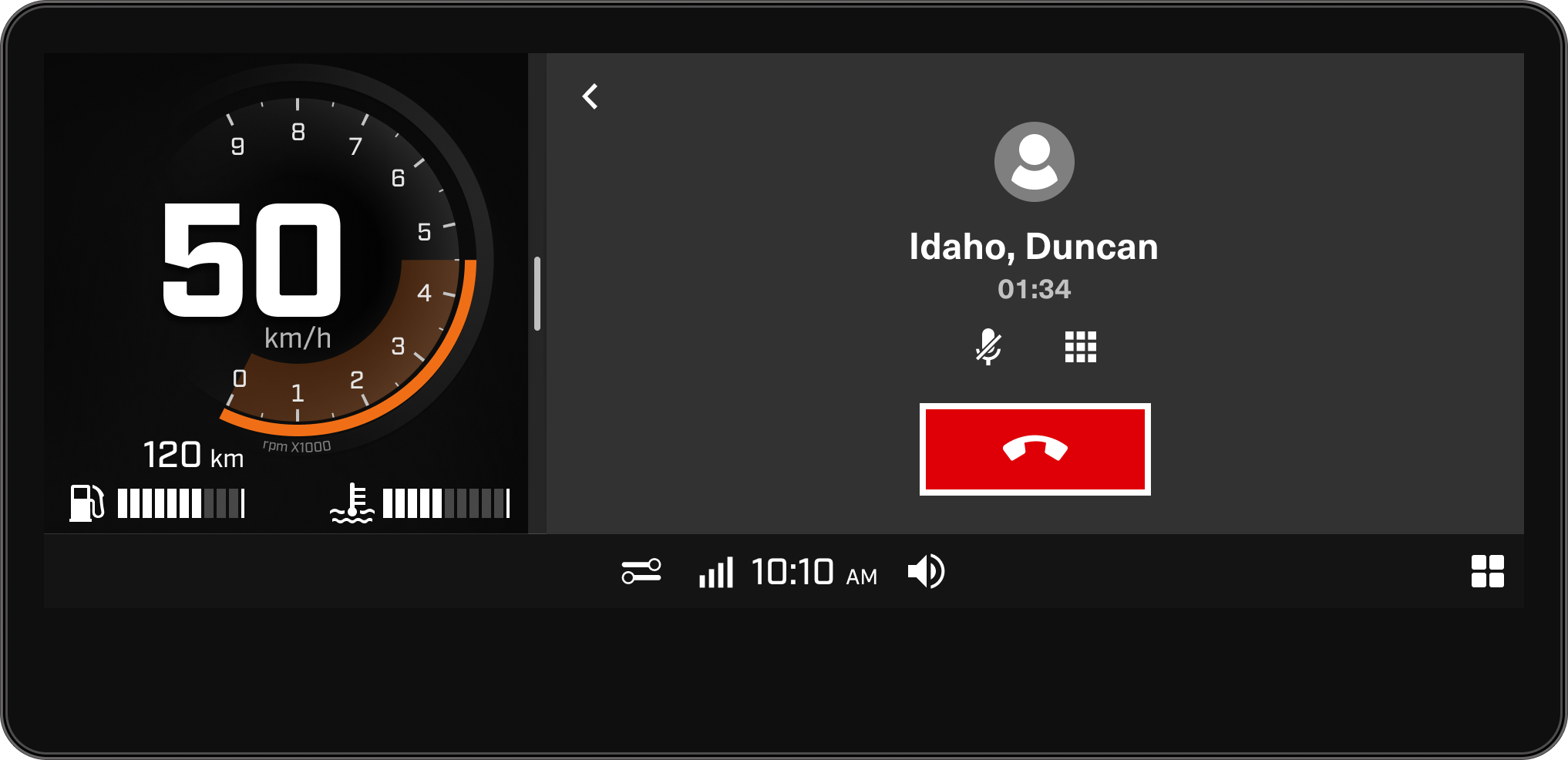
- Phone
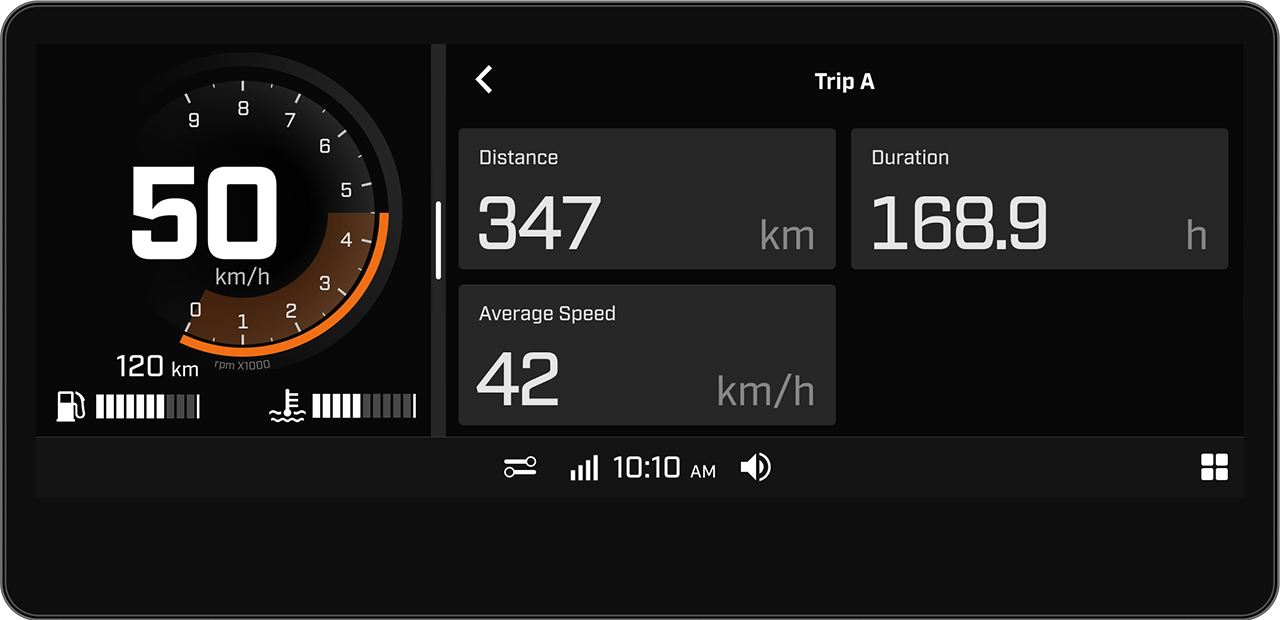
- Statistics
- Controls
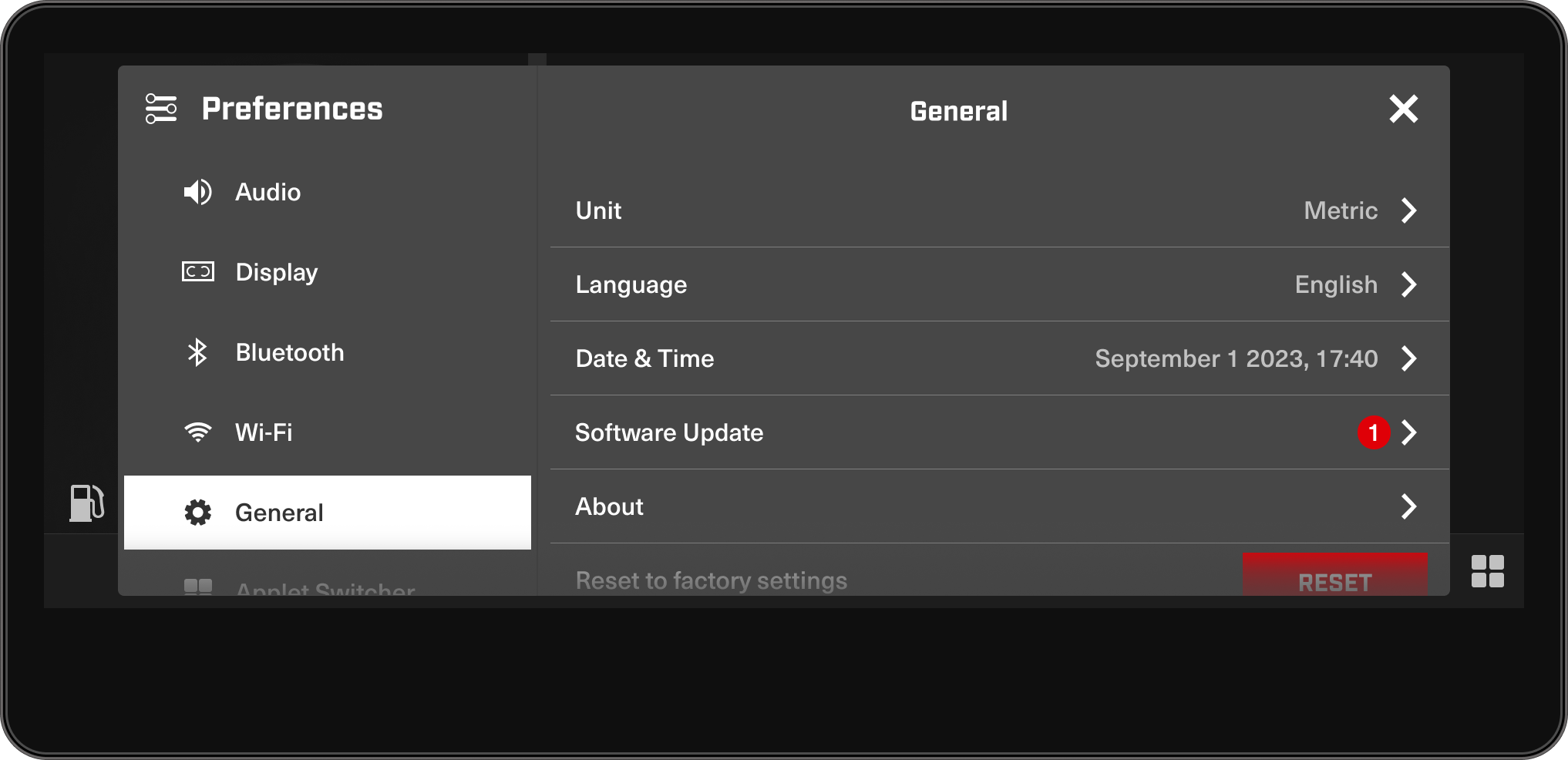
- Preferences


10.25" Touchscreen Display available on:

-
 2027
202769 RANGER PRO
-
 Heavy Duty Work
- Recreation Utility
- Deep snow
- On & Off Trail

- Rotax® 900 ACE, 900 ACE Turbo and 900 ACE Turbo R engines
- EasyRide+ rear suspension
- KYB 36 shocks
- 38 mm Cobra track
- Premium LED headlights, Flippable snowguard, modular seat with heating
![/content/dam/global/emea/lynx/my27/vehicle-lineup/LYNX-MY27-69-Ranger-PRO-900-ACE-Tactical-Grey-Orange-Crush-Studio-34FRT-EMEA.png]()
![tactical-grey---orange-crush]()
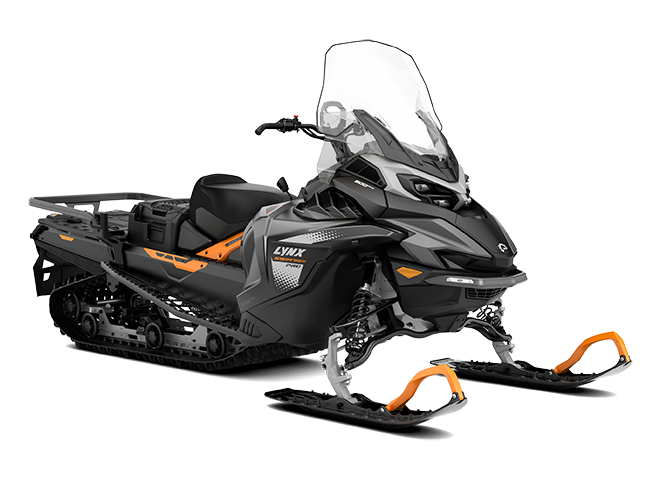
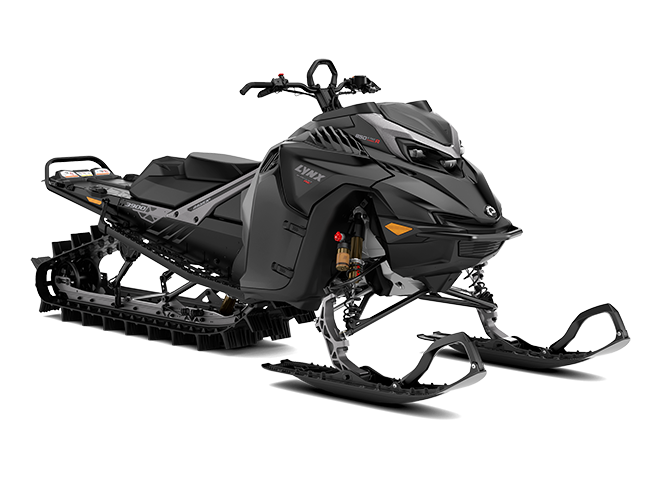
The 69 Ranger PRO, a utility snowmobile designed for demanding professional use, has been completely redesigned. The extra-wide track and EasyRide+ rear suspension ensure excellent flotation and nearly endless traction. Rotax® 900 ACE four-stroke engines, with three different power options, guarantee endless power and torque.
-

Engine
Rotax® 900 ACE, Rotax® 900 ACE Turbo, Rotax® 900 ACE Turbo R
-

Rear suspension
EasyRide+ with adjustment, KYB 36 shocks
-

Front suspension
LFS+ (arched lower A-arms), 996 mm ski stance, KYB 36 shocks
-

Track
Cobra 600 x 3968 x 38 mm
-
Special features
Premium LED headlights, Flippable snowguard, 10.25" Touchscreen Display (900 ACE Turbo R), modular seat with heating, air radiator with fan, heavy-duty front bumper, hitch, iTC-system
Engine Engine - 900 ACE
900 ACE Turbo
900 ACE Turbo R
Engine details - 900 ACE™ : Liquid-cooled, four-stroke D.O.H.C.
900 ACE™ Turbo : Liquid-cooled, four-stroke D.O.H.C., turbocharged
900 ACE™ Turbo R : Liquid-cooled, four-stroke D.O.H.C., turbocharged
Cylinders - 3
Cylinders & Displacement - 899 cc
Bore - 74 mm
Stroke - 69.7 mm
Maximum engine speed - 900 ACE™ : 7,250 RPM
900 ACE™ Turbo : 7,750 RPM
900 ACE™ Turbo R : 7,900 RPM
Carburation - EFI
Recommended fuel type - Unleaded
Minimum octane - 95
Fuel tank - 42 L
Power Train Drive clutch type - 900 ACE™ : pDrive™ with slider shoes
900 ACE™ Turbo : pDrive™
900 ACE™ Turbo R : pDrive™
Driven clutch type - QRS
Brake system - Brembo
Dimensions Vehicle Overall Length - 3250 mm
Vehicle Overall Width - 1200 mm
Vehicle Overall Height - 1450 mm
Ski Stance - 996 mm
Track Length x Width x Profile - Cobra:
3968 x 600 x 38 mm
Suspensions Front suspension - LFS+ with arched lower A-Arms
Front shock - KYB 36
Rear suspension - Articulated EasyRide+ with adjustment
Center shock - KYB 36
Rear shock - KYB 36
Feature Frame - Radien²
Skis - Blade DS+
Seating - Wide Track, 1-up heated
Handlebar - U-type steel with hooks, low grab handle
Riser block height - 145 mm
Starter - Electric
Reverse - Electromechanical
Heated throttle lever - Standard
Heated grips - Standard
Gauge - 900 ACE™ : 7.2 in. Digital Display
900 ACE™ Turbo : 7.2 in. Digital Display
900 ACE™ Turbo R : 10.25 in. Touchscreen Display
Windshield - Ultra-high with side deflectors
Hitch - Standard
Visor Plug front / rear - Front
12V power outlet - Yes, in front compartment
-
-
 2027
2027ADVENTURE ELECTRIC
-
 Family Fun
- Trail

- ROTAX E-POWER
- Revised SC-5 (3050) / SC-5M (3500) rear suspension
- Motion Control and KYB 36 shocks
- 19 mm High-Efficiency track (3050) / 32 mm Ripsaw track (3500)
- LED headlights, 10.25" Touchscreen Display
![/content/dam/global/emea/lynx/my27/vehicle-lineup/LYNX-MY27-Adventure-Electric-3500-Viper-Red-Bright-White-Studio-34FRT-EMEA.png]()
![bright-white---viper-red]()
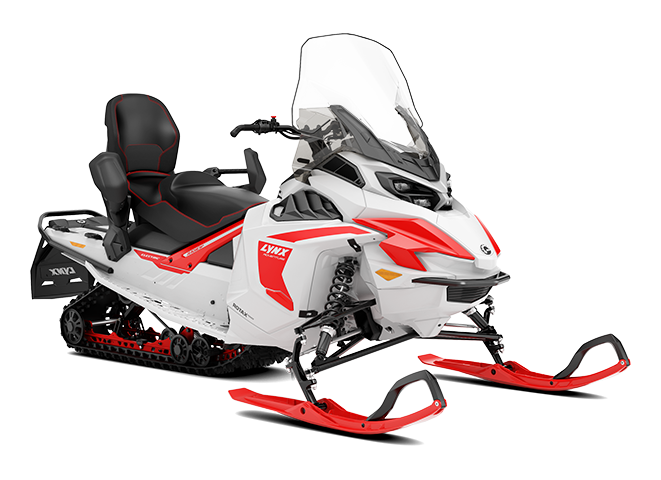
The first fully electric Lynx snowmobile. The Lynx Adventure Electric offers a new way to experience winter without smoke and engine noise. The Rotax® E-Power electric engine enables a range of up to 50 kilometers*. *With 3500 mm long track range of up to 30 km"
-
Engine
ROTAX E-POWER
-
Rear suspension
Revised SC-5, Motion Control & KYB 36 shocks
-
Front suspension
LFS+, 1097 mm ski stance, Motion Control shocks
-
Track
High-Efficiency 356 x 3048 x 19 mm (3050) / Ripsaw 381 x 3489 x 32 mm (3500)
-
Special features
LED headlights, 10.25" Touchscreen Display, Learning Key, 2-up seat
Engine Engine - E-POWER
Power Train Brake system - Brembo
Dimensions Vehicle Overall Length - 2940 mm (3050)
3060 mm (3500)
Vehicle Overall Width - 1250 mm
Vehicle Overall Height - 1470 mm
Ski Stance - 1097 mm
Track Length x Width x Profile - High-Effciency:
3048 x 356 x 19 mm
Ripsaw†:
3489 x 381 x 32 mm
Suspensions Front suspension - LFS+
Front shock - Motion Control
Rear suspension - Revised SC-5 (3050)
SC-5M (3500)
Center shock - Motion Control
Rear shock - KYB 36
Feature Frame - Radien²
Skis - Pilot™ 5.7 SLT
Seating - 2-up
Handlebar - Straight steel with hooks
Riser block height - 120 mm
Starter - Electric
Reverse - Yes
Heated throttle lever - Standard
Heated grips - Standard
Gauge - 10.25 in. Touchscreen Display
Windshield - Ultra-high with side deflectors
Visor Plug front / rear - Front
12V power outlet - Yes, in front compartment
-
-
 2027
2027BRUTAL RE
-
 Deep snow
- Steep and deep
- On & Off Trail


- Rotax® 850 E-TEC and 900 ACE Turbo R engines
- PPS² DS+ rear suspension
- KYB PRO 36 EA-3 R Kashima, KYB 46 Plus Kashima and KYB PRO 46 EA-3 R Kashima shocks
- 64 mm PowderMax† track
- Premium LED headlights, 10.25" Touchscreen Display, air radiator with fan, Black color (spring only on Turbo models)
![/content/dam/global/emea/lynx/my27/vehicle-lineup/LYNX-MY27-Brutal-RE-400mm-850-E-TEC-Viper-Red-Black-Studio-34FRT-GLOBAL.png]()
![viper-red---deep-black]()
![platinum-silver-satin---deep-black]()
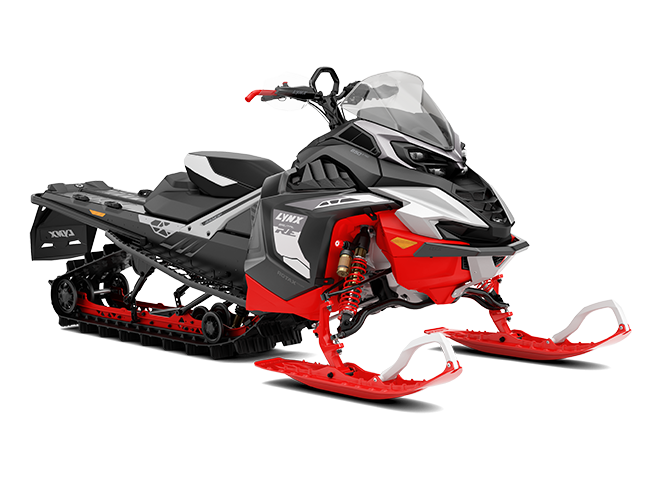
Brutal RE is an extreme crossover snowmobile blending fierce power of Rotax® 900 ACE Turbo R / 850 E-TEC engine with great deep snow performance and agility. PPS² DS+ rear suspension with high-profile track and KYB Kashima shocks ensure on & off trail aptitude with virtually limitless grip.
![/content/dam/global/emea/lynx/my27/vehicle-lineup/LYNX-MY27-Brutal-RE-400mm-900-ACE-Turbo-R-Black-Studio-34FRT-GLOBAL.png]()
![viper-red---deep-black]()
![platinum-silver-satin---deep-black]()
Brutal RE is an extreme crossover snowmobile blending fierce power of Rotax® 900 ACE Turbo R / 850 E-TEC engine with great deep snow performance and agility. PPS² DS+ rear suspension with high-profile track and KYB Kashima shocks ensure on & off trail aptitude with virtually limitless grip.
-
Engine
Rotax® 850 E-TEC,Rotax® 900 ACE Turbo R
-
Rear suspension
PPS² DS+,KYB 46 Plus Kashima and KYB PRO 46 EA-3 R Kashima shocks
-
Front suspension
LFS+ (arched lower A-arms),996 mm ski stance,KYB PRO 36 EA-3 R Kashima shocks
-
Track
PowderMax 381 x 3923 x 64 mm
-
Special features
Premium LED headlights, four-piston brake, adjustable brake lever, 10.25" Touchscreen Display, Explorer² Front Bumper, Heavy-duty rear bumper, air radiator with fan, Black color (spring only on Turbo models)
Engine Engine - 850 E-TEC
900 ACE Turbo R
Engine details - 850 E-TEC® : Liquid-cooled, two-stroke, 3-D R.A.V.E.™
900 ACE™ Turbo R : Liquid-cooled, four-stroke D.O.H.C., turbocharged
Cylinders - 850 E-TEC® : 2
900 ACE™ Turbo R : 3
Cylinders & Displacement - 850 E-TEC® : 849 cc
900 ACE™ Turbo R : 899 cc
Bore - 850 E-TEC® : 82 mm
900 ACE™ Turbo R : 74 mm
Stroke - 850 E-TEC® : 80.4 mm
900 ACE™ Turbo R : 69.7 mm
Maximum engine speed - 7,900 RPM
Carburation - 850 E-TEC® : Electronic Direct Injection with additional booster injectors
900 ACE™ Turbo R : EFI
Recommended fuel type - Unleaded
Minimum octane - 95
Fuel tank - 37 L
Oil tank capacity (2-stroke) - 3.4 L
Power Train Drive clutch type - 850 E-TEC® : pDrive™ with clickers
900 ACE™ Turbo R : pDrive™
Driven clutch type - QRS
Brake system - Brembo 4-Piston with adjustable lever
Dimensions Vehicle Overall Length - 3250 mm
Vehicle Overall Width - 1200 mm
Vehicle Overall Height - 1245 mm
Ski Stance - 996 mm
Track Length x Width x Profile - PowderMax†:
3923 x 381 x 64
Suspensions Front suspension - LFS+ with arched lower A-Arms
Front shock - KYB PRO 36 EA-3 R Kashima
Rear suspension - PPS²-DS+
Center shock - KYB 46 Plus Kashima
Rear shock - KYB PRO 46 EA-3 R Kashima
Feature Frame - Radien²
Skis - Blade DS+
Seating - Sport, 1-up
Handlebar - U-type aluminium with hooks, low grab handle
Riser block height - 120 mm
Starter - Electric (900 ACE Turbo R)
Electric and manual (850 E-TEC)
Reverse - Electromechanical (900 ACE Turbo R)
RER™ (850 E-TEC)
Heated throttle lever - Standard
Heated grips - Standard
Gauge - 10.25 in. Touchscreen Display
Windshield - Low
Visor Plug front / rear - Front
12V power outlet - Yes, in front compartment
-
-
 2027
2027BRUTAL RE (500 mm)
-
Deep snow
- Steep and deep
- On & Off Trail
- Rotax® 850 E-TEC and 900 ACE Turbo R engines
- EasyRide+ rear suspension
- KYB PRO 36 EA-3 R Kashima, KYB 46 Plus Kashima and KYB PRO 46 EA-3 R Kashima shocks
- 60 mm PowderMax† track
- Premium LED headlights, 10.25" Touchscreen Display, air radiator with fan, Multi-LinQ plate, Black color (spring only on Turbo models)
![/content/dam/global/emea/lynx/my27/vehicle-lineup/LYNX-MY27-Brutal-RE-500mm-850-E-TEC-Viper-Red-Black-Studio-34FRT-GLOBAL.png]()
![viper-red---black]()
![platinum-silver-satin---deep-black]()
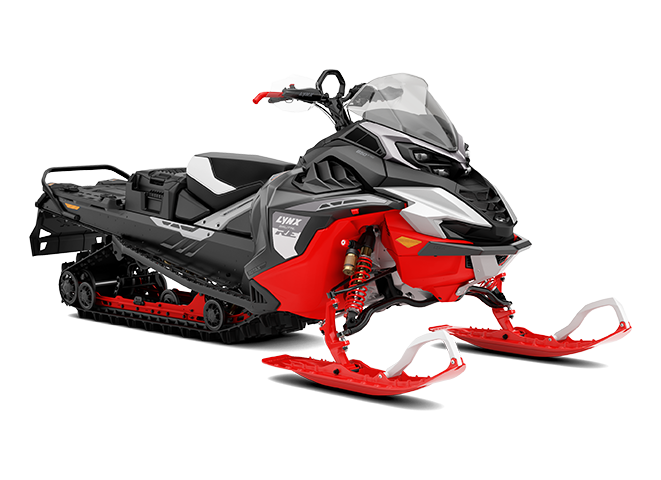
Brutal RE is the real go-anywhere sled. Combining the power of the Rotax® 900 ACE Turbo R / 850 E-TEC engine with long, wide and high profile track, the Brutal RE crushes the concept of impossible. The Radien² platform with refined ergonomics, high-performance LED headlights and a 10.25'' touchscreen display.
![/content/dam/global/emea/lynx/my27/vehicle-lineup/LYNX-MY27-Brutal-RE-500mm-900-ACE-Turbo-R-Black-Studio-34FRT-GLOBAL.png]()
![viper-red---black]()
![platinum-silver-satin---deep-black]()
Brutal RE is the real go-anywhere sled. Combining the power of the Rotax® 900 ACE Turbo R / 850 E-TEC engine with long, wide and high profile track, the Brutal RE crushes the concept of impossible. The Radien² platform with refined ergonomics, high-performance LED headlights and a 10.25'' touchscreen display.
-
Engine
Rotax® 850 E-TEC,Rotax® 900 ACE Turbo R
-
Rear suspension
EasyRide+,KYB 46 Plus Kashima and KYB PRO 46 EA-3 R Kashima shocks
-
Front suspension
LFS+ (arched lower A-arms),996 mm ski stance,KYB PRO 36 EA-3 R Kashima shocks
-
Track
PowderMax 500 x 3923 x 60 mm
-
Special features
Premium LED headlights, Flippable snowguard, four-piston brake, adjustable brake lever, 10.25" Touchscreen Display, Explorer² front bumper, Multi-LinQ plate, air radiator with fan, Black color (spring only on Turbo models)
Engine Engine - 850 E-TEC
900 ACE Turbo R
Engine details - 850 E-TEC® : Liquid-cooled, two-stroke, 3-D R.A.V.E.™
900 ACE™ Turbo R : Liquid-cooled, four-stroke D.O.H.C., turbocharged
Cylinders - 850 E-TEC® : 2
900 ACE™ Turbo R : 3
Cylinders & Displacement - 850 E-TEC® : 849 cc
900 ACE™ Turbo R : 899 cc
Bore - 850 E-TEC® : 82 mm
900 ACE™ Turbo R : 74 mm
Stroke - 850 E-TEC® : 80.4 mm
900 ACE™ Turbo R : 69.7 mm
Maximum engine speed - 7,900 RPM
Carburation - 850 E-TEC® : Electronic Direct Injection with additional booster injectors
900 ACE™ Turbo R : EFI
Recommended fuel type - Unleaded
Minimum octane - 95
Fuel tank - 42 L
Oil tank capacity (2-stroke) - 3.4 L
Power Train Drive clutch type - 850 E-TEC® : pDrive™ with clickers
900 ACE™ Turbo R : pDrive™
Driven clutch type - QRS
Brake system - Brembo 4-Piston with adjustable lever
Dimensions Vehicle Overall Length - 3300 mm
Vehicle Overall Width - 1200 mm
Vehicle Overall Height - 1235 mm
Ski Stance - 996 mm
Track Length x Width x Profile - PowderMax†:
3923 x 500 x 60
Suspensions Front suspension - LFS+ with arched lower A-Arms
Front shock - KYB PRO 36 EA-3 R Kashima
Rear suspension - EasyRide+
Center shock - KYB 46 Plus Kashima
Rear shock - KYB PRO 46 EA-3 R Kashima
Feature Frame - Radien²
Skis - Blade DS+
Seating - Brutal, 1-up
Handlebar - U-type aluminium with hooks, low grab handle
Riser block height - 120 mm
Starter - Electric (900 ACE Turbo R)
Electric and manual (850 E-TEC)
Reverse - Electromechanical (900 ACE Turbo R)
RER™ (850 E-TEC)
Heated throttle lever - Standard
Heated grips - Standard
Gauge - 10.25 in. Touchscreen Display
Windshield - Low
Visor Plug front / rear - Front
12V power outlet - Yes, in front compartment
-
-
 2027
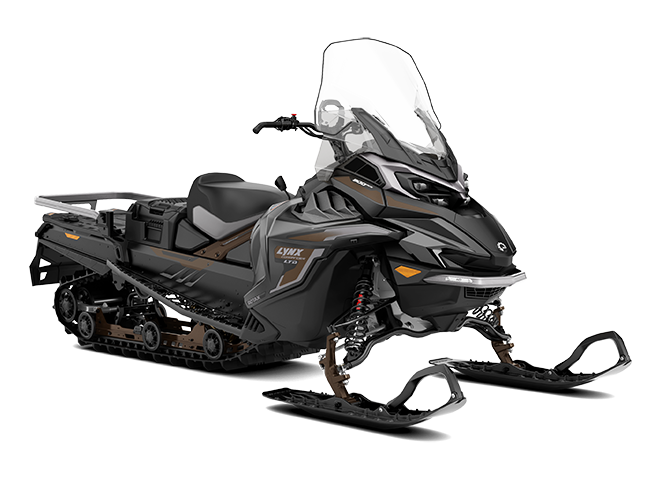
2027COMMANDER LIMITED
-
 On & Off Trail
- Recreation Utility
- Deep Snow
- Family Fun

- Rotax® 900 ACE, 900 ACE Turbo and 900 ACE Turbo R engines
- EasyRide+ rear suspension
- KYB 36 Plus and KYB 46 Plus Kashima shocks
- 44 mm PowderMax† track /38 mm Ice Crosscut studded track (Touring kit)
- Premium LED headlights, Flippable snowguard, 7.2" Digital Display (900 ACE) or 10.25" Touchscreen Display (900 ACE Turbo & Turbo R), optional Touring kit (1097 mm ski stance, heated 1+1 seat, passenger footrests, studded track)
![/content/dam/global/emea/lynx/my27/vehicle-lineup/LYNX-MY27-Commander-Limited-900-ACE-Noble-Bronze-Black-Studio-34FRT-EMEA.png]()
![noble-bronze---deep-black]()
The market’s most versatile crossover gains even more power with the 180 hp Rotax® 900 ACE Turbo R engine option. KYB / KYB 46 Kashima shocks ensure a premium ride, while the optional Touring Kit with a wide ski stance transforms the sled into a luxurious two-up tourer.
-
Engine
Rotax® 900 ACE,Rotax® 900 ACE Turbo,Rotax® 900 ACE Turbo R
-
Rear suspension
EasyRide+ with adjustment,KYB 46 Plus Kashima shocks
-
Front suspension
LFS+ with arched lower A-Arms /,LFS+ (Touring kit),996 mm / 1097 mm (Touring kit) ski stance,KYB 36 Plus shocks / KYB 36 Plus R (Touring kit)
-
Track
PowderMax† 500 x 3 923 x 44 mm / Ice Crosscut studded 500 x 3923 x 38 mm (Touring kit)
-
Special features
Premium LED headlights, Flippable snowguard, Hitch, Modular seat with heating, air radiator with fan, 7.2" Digital Display (900 ACE) or 10.25" Touchscreen Display (900 ACE Turbo & Turbo R), iTC-system, optional Touring kit (heated 1+1 seat, 1097 mm ski stance, passenger footrests, studded track)
Engine Engine - 900 ACE
900 ACE Turbo
900 ACE Turbo R
Engine details - 900 ACE™ : Liquid-cooled, four-stroke D.O.H.C.
900 ACE™ Turbo : Liquid-cooled, four-stroke D.O.H.C., turbocharged
900 ACE™ Turbo R : Liquid-cooled, four-stroke D.O.H.C., turbocharged
Cylinders - 3
Cylinders & Displacement - 899 cc
Bore - 74 mm
Stroke - 69.7 mm
Maximum engine speed - 900 ACE™ : 7,250 RPM
900 ACE™ Turbo : 7,750 RPM
900 ACE™ Turbo R : 7,900 RPM
Carburation - EFI
Recommended fuel type - Unleaded
Minimum octane - 95
Fuel tank - 42 L
Power Train Drive clutch type - 900 ACE™ : pDrive™ with slider shoes
900 ACE™ Turbo : pDrive™
900 ACE™ Turbo R : pDrive™
Driven clutch type - QRS
Brake system - Brembo
Dimensions Vehicle Overall Length - 3245 mm
Vehicle Overall Width - 1200 mm
1280 mm (Touring kit)
Vehicle Overall Height - 1480 mm
Ski Stance - 996 mm
1097 mm (Touring kit)
Track Length x Width x Profile - PowderMax†:
3923 x 500 x 44 mm
Ice Crosscut studded:
3923 x 500 x 38 mm (Touring kit)
Suspensions Front suspension - LFS+ with arched lower A-Arms
LFS+ (Touring kit)
Front shock - KYB 36 Plus
KYB 36 Plus R (Touring kit)
Rear suspension - Articulated EasyRide+ with adjustment
Center shock - KYB 46 Plus Kashima
Rear shock - KYB 46 Plus Kashima
Feature Frame - Radien²
Skis - Blade DS+
Seating - Wide Track, 1-up or 2-up heated
Handlebar - U-type steel with hooks, low grab handle
Riser block height - 145 mm
Starter - Electric
Reverse - Electromechanical
Heated throttle lever - Standard (driver and passenger)
Heated grips - Standard (driver and passenger)
Gauge - 900 ACE™ : 7.2 in. Digital Display
900 ACE™ Turbo : 10.25 in. Touchscreen Display
900 ACE™ Turbo R : 10.25 in. Touchscreen Display
Windshield - Ultra-high with side deflectors
Hitch - Standard
Visor Plug front / rear - Front
Front and rear (Touring kit)
12V power outlet - Yes, in front compartment
-
-
 2027
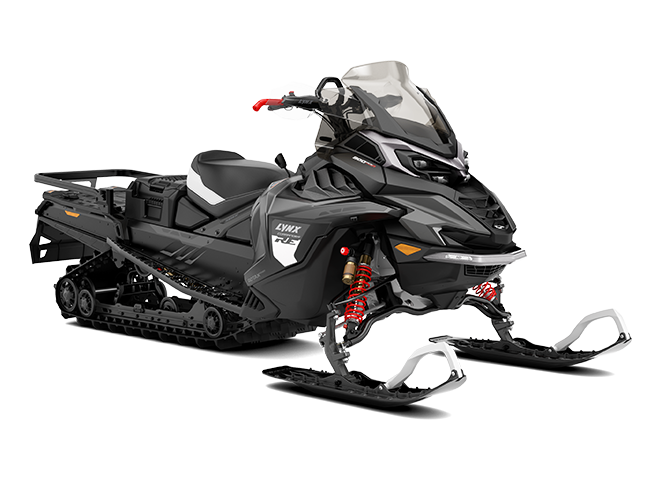
2027COMMANDER RE
-
On & Off Trail
- Recreation Utility
- Deep Snow
- Family Fun

- Rotax® 900 ACE Turbo R engine
- EasyRide+ rear suspension
- KYB PRO 36 EA-3 R Kashima / KYB PRO 46 EA-3 Kashima / KYB PRO 46 EA-3 R Kashima shocks
- 44 mm PowderMax† track
- Premium LED headlights, Flippable snowguard, four-piston brake, adjustable brake lever, 10.25" Touchscreen Display
![/content/dam/global/emea/lynx/my27/vehicle-lineup/LYNX-MY27-Commander-RE-900-ACE-Turbo-R-Tactical-Grey-Black-Studio-34FRT-GLOBAL.png]()
![tactical-grey---deep-black]()
The Commander RE is a power-oozing crossover snowmobile excelling on trails, deep snow, and towing. The EasyRide+ rear suspension, quick-adjustable KYB PRO EA-3 Kashima shocks, and 180 hp Rotax® 900 ACE Turbo R engine deliver outstanding performance.
-
Engine
Rotax® 900 ACE Turbo R
-
Rear suspension
EasyRide+ with adjustment,KYB PRO 46 EA-3 Kashima & KYB PRO 46 EA-3 R Kashima shocks
-
Front suspension
LFS+ (arched lower A-arms),996 mm ski stance,KYB PRO 36 EA-3 R Kashima shocks
-
Track
PowderMax† 500 x 3 923 x 44 mm
-
Special features
Premium LED headlights, Flippable snowguard, Hitch, Modular seat with heating, four-piston brake, adjustable brake lever, rail reinforcements, air radiator with fan, 10.25" Touchscreen Display, iTC-system
Engine Engine - 900 ACE Turbo R
Engine details - 900 ACE Turbo R™ : Liquid-cooled, four-stroke D.O.H.C., turbocharged
Cylinders - 3
Cylinders & Displacement - 899 cc
Bore - 74 mm
Stroke - 69.7 mm
Maximum engine speed - 7,900 RPM
Carburation - EFI
Recommended fuel type - Unleaded
Minimum octane - 95
Fuel tank - 42 L
Power Train Drive clutch type - 900 ACE™ Turbo R : pDrive™
Driven clutch type - QRS
Brake system - Brembo 4-Piston with adjustable lever
Dimensions Vehicle Overall Length - 3245 mm
Vehicle Overall Width - 1200 mm
Vehicle Overall Height - 1280 mm
Ski Stance - 996 mm
Track Length x Width x Profile - PowderMax†:
3923 x 500 x 44 mm
Suspensions Front suspension - LFS+ with arched lower A-Arms
Front shock - KYB PRO 36 EA-3 R Kashima
Rear suspension - EasyRide+ with adjustment
Center shock - KYB PRO 46 EA-3 Kashima
Rear shock - KYB PRO 46 EA-3 R Kashima
Feature Frame - Radien²
Skis - Blade DS+
Seating - Wide Track, 1-up heated
Handlebar - U-type steel with hooks, low grab handle
Riser block height - 145 mm
Starter - Electric
Reverse - Electromechanical
Heated throttle lever - Standard
Heated grips - Standard
Gauge - 10.25 in. Touchscreen Display
Windshield - Medium with side deflectors
Hitch - Standard
Visor Plug front / rear - Front
12V power outlet - Yes, in front compartment
-
-
 2027
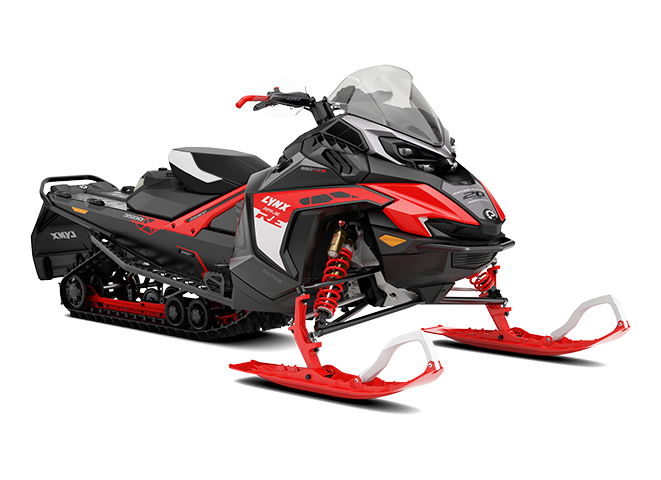
2027RAVE RE
-
 Trail
Trail
- Rotax® 850 E-TEC Turbo R, 850 E-TEC and 600RR E-TEC engines
- PPS³ rear / LFS-R front suspension
- KYB PRO 46 HLCR Kashima shocks
- 41 mm Cobra track (600RR) / 38 mm Ice Ripper XT studded track (on 850 and 850 Turbo)
- Silent-Stop and Smart ECO mode (silent-stop only 600RR with e-start), Premium LED headlights, 7.2" Digital Display or 10.25" Touchscreen Display, four-piston brake and adjustable brake lever, Black color (spring only on Turbo)
![/content/dam/global/emea/lynx/my27/vehicle-lineup/LYNX-MY27-Rave-RE-3500-850-E-TEC-Turbo-R-Viper-Red-Black-Studio-34FRT-GLOBAL.png]()
![viper-red---deep-black]()
![platinum-silver-satin---deep-black]()
The Rave RE is a purebred sports snowmobile featuring a unique PPS³/LFS-R suspension with fully adjustable KYB PRO shock absorbers. Rotax® E-TEC engines deliver sharp throttle response and massive power. Now available with a 3300 mm track length (formerly the Rave Enduro package). A special coloring celebrates the 20-year journey of the trail legend.
![/content/dam/global/emea/lynx/my27/vehicle-lineup/LYNX-MY27-Rave-RE-3500-850-E-TEC-Turbo-R-Black-Studio-34FRT-GLOBAL.png]()
![viper-red---deep-black]()
![platinum-silver-satin---deep-black]()
The Rave RE is a purebred sports snowmobile featuring a unique PPS³/LFS-R suspension with fully adjustable KYB PRO shock absorbers. Rotax® E-TEC engines deliver sharp throttle response and massive power. Now available with a 3300 mm track length (formerly the Rave Enduro package). A special coloring celebrates the 20-year journey of the trail legend.
-
Engine
Rotax® 850 E-TEC Turbo R, Rotax® 850 E-TEC, Rotax® 600RR E-TEC
-
Rear suspension
PPS³, KYB PRO 46 HLCR Kashima shocks
-
Front suspension
LFS-R, 1097 mm ski stance, KYB PRO 46 HLCR Kashima shocks
-
Track
Cobra 381 x 3 269 x 41 mm or 381 x 3 487 x 41 mm (600RR) / Ice Ripper XT studded 381 x 3 487 x 38 mm (on 850 and 850 Turbo)
-
Special features
Silent-Stop and Smart ECO mode (silent-stop only 600RR with e-start), Premium LED headlights, four-piston brake, adjustable brake lever, 7.2" Digital Display or 10.25" Touchscreen Display, SHOT starter on 850 Turbo R, Black color (spring only on Turbo)
Engine Engine - 850 E-TEC Turbo R with WIS
600RR E-TEC
Engine details - 600RR E-TEC® : Liquid-cooled, two-stroke, 3-D RAVE™
850 E-TEC® : Liquid-cooled, two-stroke, 3-D R.A.V.E.™
850 E-TEC® Turbo R with WIS : Liquid-cooled, two-stroke, turbocharged, water injection system, 3-D R.A.V.E.™
Cylinders - 600RR E-TEC® : 2
850 E-TEC® : 2
850 E-TEC® Turbo R with WIS : 2
Cylinders & Displacement - 600RR E-TEC® : 599.4 cc
850 E-TEC® : 849 cc
850 E-TEC® Turbo R with WIS : 849 cc
Bore - 600RR E-TEC® : 72.3 mm
850 E-TEC® : 82 mm
850 E-TEC® Turbo R with WIS : 82 mm
Stroke - 600RR E-TEC® : 73 mm
850 E-TEC® : 80.4 mm
850 E-TEC® Turbo R with WIS : 80.4 mm
Maximum engine speed - 600RR E-TEC® : 8,250 RPM
850 E-TEC® : 7,900 RPM
850 E-TEC® Turbo R with WIS : 7,900 RPM
Carburation - 600RR E-TEC® : Electronic Direct injection with additional booster injectors
850 E-TEC® : Electronic Direct Injection with additional booster injectors
850 E-TEC® Turbo R with WIS : Electronic Direct Injection with additional booster injectors
Recommended fuel type - Unleaded
Minimum octane - 95
Fuel tank - 37 L
Oil tank capacity (2-stroke) - 3,4 L
Power Train Drive clutch type - 600RR E-TEC® : pDrive™ with clickers
850 E-TEC® : pDrive™ with clickers
850 E-TEC® Turbo R with WIS : pDrive™ with clickers
Driven clutch type - QRS
Brake system - Brembo 4-Piston with adjustable lever
Dimensions Vehicle Overall Length - 2920 mm (3300)
3040 mm (3500)
Vehicle Overall Width - 1270 mm
Vehicle Overall Height - 1140 mm
Ski Stance - 1097 mm
Track Length x Width x Profile - Cobra:
3269 x 381 x 41 mm (600RR)
3487 x 381 x 41 mm (600RR)
Ice Ripper XT studded:
3487 x 381 x 38 mm (on 850 and 850 Turbo)
Suspensions Front suspension - LFS-R
Front shock - KYB PRO 46 HLCR Kashima
Rear suspension - PPS³
Center shock - KYB PRO 46 HLCR Kashima
Rear shock - KYB PRO 46 HLCR Kashima
Feature Frame - Radien²
Skis - Blade XC+
Seating - Sport, 1-up
Handlebar - U-type aluminium with hooks
Riser block height - 90 mm
Starter - SHOT (850 E-TEC Turbo R)
Electric and manual (850 E-TEC & option on 600RR E-TEC)
Manual (option on 600RR E-TEC)
Reverse - RER™
Heated throttle lever - Standard
Heated grips - Standard
Gauge - 600RR E-TEC® : 7.2 in. Digital Display or 10.25 in. Touchscreen Display
850 E-TEC® : 10.25 in. Touchscreen Display
850 E-TEC® Turbo R with WIS : 10.25 in. Touchscreen Display
Windshield - Low
Visor Plug front / rear - Front
12V power outlet - Yes, in front compartment
-
-
 2027
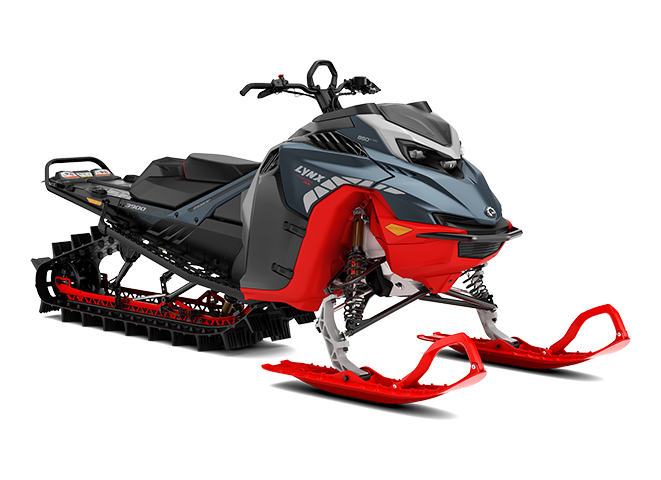
2027SHREDDER DS
-
 Steep and deep
- Deep snow

- Rotax® 850 E-TEC and 850 E-TEC Turbo R engines
- PPS³ DS rear / LFS-DS front suspension
- KYB 36 Plus Kashima shocks
- 76 mm PowderMax X-Light track
- Premium LED headlights, 4,5" Digital Display or 10.25" Touchscreen Display, adjustable brake lever, SHOT starter, Black color (spring only on 3900 Turbo model)
![/content/dam/global/emea/lynx/my27/vehicle-lineup/LYNX-MY27-Shredder-DS-3900-850-E-TEC-Mineral-Blue-Viper-Red-Studio-34FRT-GLOBAL.png]()
![mineral-blue---viper-red]()
![platinum-silver-satin---deep-black]()
Shredder DS is the machine for the deepest snow and the gnarliest treelines. Tapered tunnel, PPS³ DS rear suspesion and LFS-DS front suspension improve deep snow performance and handling. The Blade DSS ski with deep snow optimized steering system enhance agility and precision.
![/content/dam/global/emea/lynx/my27/vehicle-lineup/LYNX-MY27-Shredder-DS-3900-850-E-TEC-Turbo-R-Black-Studio-34FRT-GLOBAL.png]()
![mineral-blue---viper-red]()
![platinum-silver-satin---deep-black]()
Shredder DS is the machine for the deepest snow and the gnarliest treelines. Tapered tunnel, PPS³ DS rear suspesion and LFS-DS front suspension improve deep snow performance and handling. The Blade DSS ski with deep snow optimized steering system enhance agility and precision.
-
Engine
Rotax® 850 E-TEC, Rotax® 850 E-TEC Turbo R
-
Rear suspension
PPS³ DS, KYB 36 Plus Kashima shocks
-
Front suspension
LFS-DS, 863 mm ski stance, KYB 36 Plus Kashima shocks
-
Track
PowderMax X-Light 381 x 3912 x 76 mm / 381 x 4178 x 76 mm (spring only)
-
Special features
Premium LED headlights, 90 mm riser, 4,5" Digital Display or 10.25" Touchscreen Display, adjustable brake lever, SHOT starter, Black color (spring only on 3900 Turbo models)
Engine Engine - 850 E-TEC
850 E-TEC Turbo R
Engine details - 850 E-TEC® : Liquid-cooled, two-stroke, 3-D R.A.V.E.™
850 E-TEC® Turbo R : Liquid-cooled, two-stroke, turbocharged, 3-D R.A.V.E.™
Cylinders - 2
Cylinders & Displacement - 849 cc
Bore - 82 mm
Stroke - 80.4 mm
Maximum engine speed - 7,900 RPM
Carburation - Electronic Direct Injection with additional booster injectors
Recommended fuel type - Unleaded
Minimum octane - 95
Fuel tank - 37 L
Oil tank capacity (2-stroke) - 3,4 L
Power Train Drive clutch type - 850 E-TEC® : pDrive™ with clickers
850 E-TEC® Turbo R : pDrive™ with clickers
Driven clutch type - QRS
Brake system - Brembo with adjustable lever
Dimensions Vehicle Overall Length - 3200 mm (3900)
3335 mm (4100)
Vehicle Overall Width - 1031 mm
Vehicle Overall Height - 1240 mm
Ski Stance - 863 mm
Track Length x Width x Profile - PowderMax† X-Light:
3912 x 381 x 76 mm
4178 x 381 x 76 mm (spring only)
Suspensions Front suspension - LFS-DS
Front shock - KYB 36 Plus Kashima
Rear suspension - PPS³-DS
Center shock - KYB 36 Plus Kashima
Rear shock - KYB 36 Plus Kashima
Feature Frame - Radien²
Skis - Blade DSS
Seating - Deep snow ultra compact
Handlebar - U-type aluminium with hooks, low grab handle
Riser block height - 90 mm
Starter - SHOT
Reverse - RER™
Heated throttle lever - Standard
Heated grips - Standard
Gauge - 850 E-TEC® : 4.5 in. Digital Display or 10.25 in. Touchscreen Display
850 E-TEC® Turbo R : 10.25 in. Touchscreen Display
12V power outlet - Yes, in front compartment
-
-
 2027
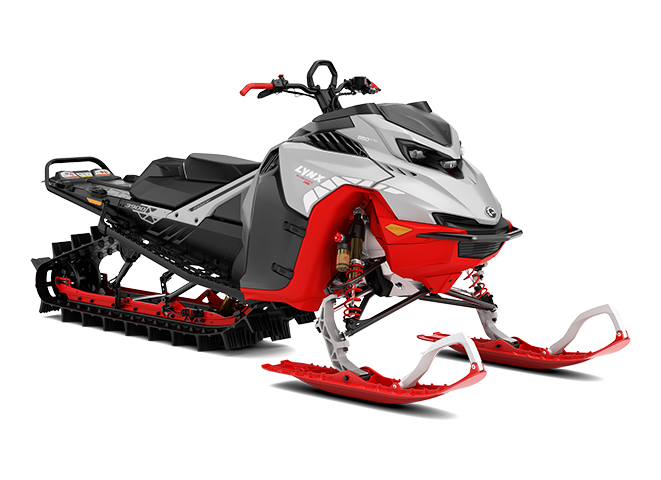
2027SHREDDER RE
-
Steep and deep
- Deep snow

- Rotax® 850 E-TEC and 850 E-TEC Turbo R engines
- PPS³ DS rear / LFS-DS front suspension
- KYB PRO 40 EA-3 Kashima / KYB 46 Plus Kashima / KYB PRO 46 EA-3 R Kashima shocks
- 64 mm PowderMax† track (3700 850 engine) / 76 mm PowderMax X-Light track (3900 and 3700 850 Turbo)
- Premium LED headlights, 4,5" Digital Display or 10.25" Touchscreen Display, rail reinforcements, adjustable brake lever, SHOT starter, Black color (spring only on Turbo models), electric starter (spring only on 3700 850 engine)
![/content/dam/global/emea/lynx/my27/vehicle-lineup/LYNX-MY27-Shredder-RE-3900-850-E-TEC-Hyper-Silver-Viper-Red-Studio-34FRT-GLOBAL.png]()
![hyper-silver---viper-red]()
![platinum-silver-satin---deep-black]()
The Shredder RE is unmatched in its agility and fun, thanks to its new narrower ski stance, tapered tunnel, and deep-snow-optimized suspension. Top-quality KYB PRO Kashima shock absorbers enhance performance in aggressive riding. Raw power is guaranteed by Rotax® 850 E-TEC / 850 E-TEC Turbo R engines.
![/content/dam/global/emea/lynx/my27/vehicle-lineup/LYNX-MY27-Shredder-RE-3900-850-E-TEC-Turbo-R-Black-Studio-34FRT-GLOBAL.png]()
![hyper-silver---viper-red]()
![platinum-silver-satin---deep-black]()
The Shredder RE is unmatched in its agility and fun, thanks to its new narrower ski stance, tapered tunnel, and deep-snow-optimized suspension. Top-quality KYB PRO Kashima shock absorbers enhance performance in aggressive riding. Raw power is guaranteed by Rotax® 850 E-TEC / 850 E-TEC Turbo R engines.
-
Engine
Rotax® 850 E-TEC, Rotax® 850 E-TEC Turbo R
-
Rear suspension
PPS³ DS, KYB 46 Plus Kashima & KYB PRO 46 EA-3 Kashima shocks
-
Front suspension
LFS-DS, 863 mm ski stance, KYB PRO 40 EA-3 Kashima shocks
-
Track
PowderMax† 381 x 3705 x 64 mm / PowderMax X-Light 381 x 3734 x 76 mm / 381 x 3912 x 76 mm
-
Special features
Premium LED headlights, 90 mm riser, 4,5" Digital Display or 10.25" Touchscreen Display, adjustable KYB shocks, rail reinforcements, adjustable brake lever, SHOT starter, Black color (spring only on Turbo models), electric starter (spring only on 3700 850 engine)
Engine Engine - 850 E-TEC
850 E-TEC Turbo R
Engine details - 850 E-TEC® : Liquid-cooled, two-stroke, 3-D R.A.V.E.™
850 E-TEC® Turbo R : Liquid-cooled, two-stroke, turbocharged, 3-D R.A.V.E.™
Cylinders - 2
Cylinders & Displacement - 849 cc
Bore - 82 mm
Stroke - 80.4 mm
Maximum engine speed - 7,900 RPM
Carburation - Electronic Direct Injection with additional booster injectors
Recommended fuel type - Unleaded
Minimum octane - 95
Fuel tank - 37 L
Oil tank capacity (2-stroke) - 3,4 L
Power Train Drive clutch type - 850 E-TEC® : pDrive™ with clickers
850 E-TEC® Turbo R : pDrive™ with clickers
Driven clutch type - QRS
Brake system - Brembo with adjustable lever
Dimensions Vehicle Overall Length - 3080 mm (3700 850)
3095 mm (3700 850 Turbo R)
3200 mm (3900)
Vehicle Overall Width - 1031 mm
Vehicle Overall Height - 1240 mm
Ski Stance - 863 mm
Track Length x Width x Profile - PowderMax†:
3705 x 381 x 64 (3700 850)
PowderMax† X-Light:
3734 x 381 x 76 (3700 850 Turbo R)
3912 x 381 x 76
Suspensions Front suspension - LFS-DS
Front shock - KYB PRO 40 EA-3 Kashima
Rear suspension - PPS³-DS
Center shock - KYB 46 Plus Kashima
Rear shock - KYB PRO 46 EA-3 R Kashima
Feature Frame - Radien²
Skis - Blade DSS
Seating - Deep snow ultra compact
Handlebar - U-type aluminium with hooks, low grab handle
Riser block height - 90 mm
Starter - SHOT
Electric and manual (spring only on 3700 850 E-TEC)
Reverse - RER™
Heated throttle lever - Standard
Heated grips - Standard
Gauge - 850 E-TEC® : 4.5 in. Digital Display or 10.25 in. Touchscreen Display
850 E-TEC® Turbo R : 10.25 in. Touchscreen Display
12V power outlet - Yes, in front compartment
-
-
 2027
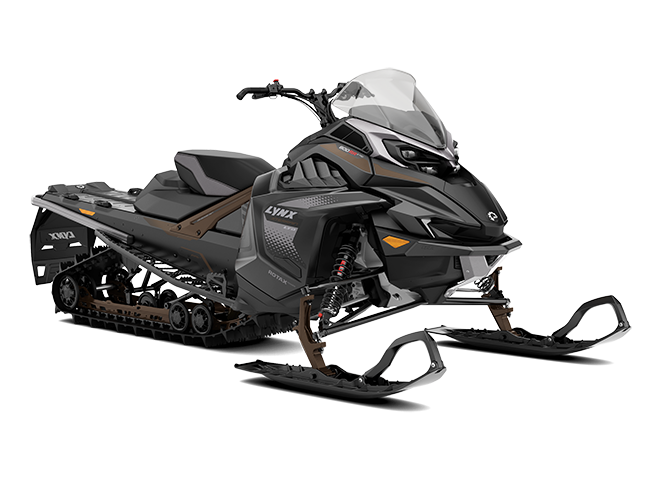
2027XTERRAIN LIMITED
-
Trail
- Trail
- Family Fun
- Rotax® 600RR E-TEC and 900 ACE Turbo engines
- PPS³ rear / LFS-R front suspension
- KYB 36 Plus R, KYB 36 Plus and KYB 46 Plus Kashima shocks
- 51 mm PowderMax† track
- Silent-Stop and Smart ECO mode (600RR), Premium LED headlights, Heated seat, 7.2" Digital Display (600RR) or 10.25" Touchscreen Display (900 ACE Turbo)
![/content/dam/global/emea/lynx/my27/vehicle-lineup/LYNX-MY27-Xterrain-Limited-600RR-E-TEC-Noble-Bronze-Black-Studio-34FRT-EMEA.png]()
![noble-bronze---deep-black]()
High-performance crossover snowmobile for adventurous weekend getaways. High-quality KYB Plus shock absorbers smooth out even the roughest wilderness trails. Powerful and fuel-efficient Rotax® 600RR E-TEC / 900 ACE Turbo engines guarantee performance. The optional Touring Kit converts the Xterrain Limited into a two-person touring sled.
-
Engine
Rotax® 600RR E-TEC,Rotax® 900 ACE Turbo
-
Rear suspension
PPS³,KYB 36 Plus & KYB 46 Plus Kashima shocks
-
Front suspension
LFS-R,1097 mm ski stance,KYB 36 Plus R shocks
-
Track
PowderMax† 381 x 3 705 x 51 mm
-
Special features
Silent-Stop and Smart ECO mode (600RR), Premium LED headlights, 7.2" Digital Display (600RR) or 10.25" Touchscreen Display (900 ACE Turbo), Explorer² Front Bumper, Heavy-duty rear bumper, Heated seat, optional touring kit on 900 ACE Turbo (2-up heated seat, high windshield and air radiator with fan)
Engine Engine - 600RR E-TEC
900 ACE Turbo
Engine details - 600RR E-TEC® : Liquid-cooled, two-stroke, 3-D RAVE™
900 ACE™ Turbo : Liquid-cooled, four-stroke D.O.H.C., turbocharged
Cylinders - 600RR E-TEC® : 2
900 ACE™ Turbo : 3
Cylinders & Displacement - 600RR E-TEC® : 599.4 cc
900 ACE™ Turbo : 899 cc
Bore - 600RR E-TEC® : 72.3 mm
900 ACE™ Turbo : 74 mm
Stroke - 600RR E-TEC® : 73 mm
900 ACE™ Turbo : 69.7 mm
Maximum engine speed - 600RR E-TEC® : 8,250 RPM
900 ACE™ Turbo : 7,750 RPM
Carburation - 600RR E-TEC® : Electronic Direct injection with additional booster injectors
900 ACE™ Turbo : EFI
Recommended fuel type - Unleaded
Minimum octane - 95
Fuel tank - 37 L
Oil tank capacity (2-stroke) - 3,4 L
Power Train Drive clutch type - 600RR E-TEC® : pDrive™ with clickers
900 ACE™ Turbo : pDrive™
Driven clutch type - QRS
Brake system - Brembo
Dimensions Vehicle Overall Length - 3180 mm
Vehicle Overall Width - 1270 mm
Vehicle Overall Height - 1320 mm
Ski Stance - 1097 mm
Track Length x Width x Profile - PowderMax†:
3705 x 381 x 51 mm
Suspensions Front suspension - LFS-R
Front shock - KYB 36 Plus R
Rear suspension - PPS³
Center shock - KYB 36 Plus Kashima
Rear shock - KYB 36 Plus Kashima
Feature Frame - Radien²
Skis - Blade XC+
Seating - Sport, 1-up or 2-up heated
Handlebar - U-type aluminium with hooks
Riser block height - 120 mm
Starter - Electric and manual (600RR E-TEC)
Electric (900 ACE Turbo)
Reverse - RER™ (600RR E-TEC)
Electromechanical (900 ACE Turbo)
Heated throttle lever - Standard (driver and passenger)
Heated grips - Standard (driver and passenger)
Gauge - 600RR E-TEC® : 7.2 in. Digital Display
900 ACE™ Turbo : 10.25 in. Touchscreen Display
Windshield - Low
Ultra-high with side deflectors (Touring kit)
Visor Plug front / rear - Front
Front and rear (Touring kit)
12V power outlet - Yes, in front compartment
-
-
 2027
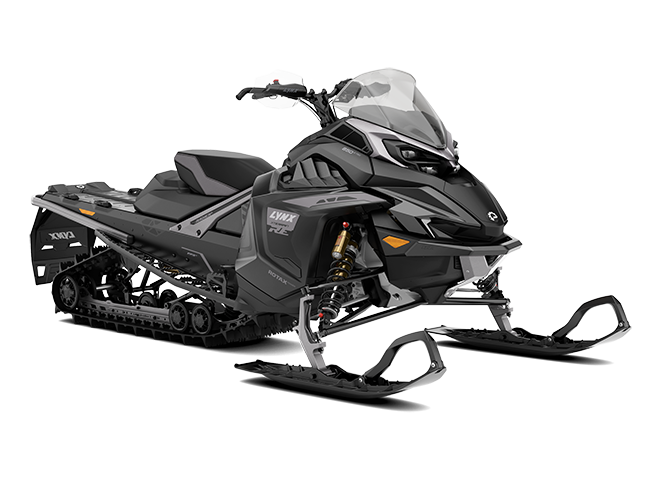
2027XTERRAIN RE
-
On & Off Trail
- Trail
- Rotax® 850 E-TEC Turbo R, 850 E-TEC and 900 ACE Turbo R engines
- PPS³ rear / LFS-R front suspension
- KYB PRO 46 HLCR Kashima shocks
- 51 mm PowderMax† track
- Premium LED headlights, 10.25" Touchscreen Display, heated seat
![/content/dam/global/emea/lynx/my27/vehicle-lineup/LYNX-MY27-Xterrain-RE-850-E-TEC-Black-Studio-34FRT-GLOBAL.png]()
![platinum-silver-satin---deep-black]()
The extreme crossover for long journeys. The new LFS-R front suspension, combined with the PPS³ rear suspension and top-quality KYB PRO 46 HLCR Kashima shock absorbers, tames even the most demanding terrain. The power of Rotax® engines satisfy even the most extreme thrill seekers.
-
Engine
Rotax® 850 E-TEC Turbo R,Rotax® 850 E-TEC,Rotax® 900 ACE Turbo R
-
Rear suspension
PPS³,KYB PRO 46 HLCR Kashima shocks
-
Front suspension
LFS-R,1097 mm ski stance,KYB PRO 46 HLCR Kashima shocks
-
Track
PowderMax† 381 x 3 705 x 51 mm
-
Special features
Premium LED headlights, four-piston brake, adjustable brake lever, handguards, 10.25" Touchscreen Display, Heated seat, Explorer² Front Bumper, heavy-duty rear bumper, SHOT starter on 850 Turbo R
Engine Engine - 850 E-TEC
850 E-TEC Turbo R with WIS
900 ACE Turbo R
Engine details - 850 E-TEC® : Liquid-cooled, two-stroke, 3-D R.A.V.E.™
850 E-TEC® Turbo R with WIS : Liquid-cooled, two-stroke, turbocharged, water injection system, 3-D R.A.V.E.™
900 ACE™ Turbo R : Liquid-cooled, four-stroke D.O.H.C., turbocharged
Cylinders - 850 E-TEC® : 2
850 E-TEC® Turbo R with WIS : 2
900 ACE™ Turbo R : 3
Cylinders & Displacement - 850 E-TEC® : 849 cc
850 E-TEC® Turbo R with WIS : 849 cc
900 ACE™ Turbo R : 899 cc
Bore - 850 E-TEC® : 82 mm
850 E-TEC® Turbo R with WIS : 82 mm
900 ACE™ Turbo R : 74 mm
Stroke - 850 E-TEC® : 80.4 mm
850 E-TEC® Turbo R with WIS : 80.4 mm
900 ACE™ Turbo R : 69.7 mm
Maximum engine speed - 7,900 RPM
Carburation - 850 E-TEC® : Electronic Direct Injection with additional booster injectors
850 E-TEC® Turbo R with WIS : Electronic Direct Injection with additional booster injectors
900 ACE™ Turbo R : EFI
Recommended fuel type - Unleaded
Minimum octane - 95
Fuel tank - 37 L
Oil tank capacity (2-stroke) - 3,4 L
Power Train Drive clutch type - 850 E-TEC® : pDrive™ with clickers
850 E-TEC® Turbo R with WIS : pDrive™ with clickers
900 ACE™ Turbo R : pDrive™
Driven clutch type - QRS
Brake system - Brembo 4-Piston with adjustable lever
Dimensions Vehicle Overall Length - 3180 mm
Vehicle Overall Width - 1270 mm
Vehicle Overall Height - 1300 mm
Ski Stance - 1097 mm
Track Length x Width x Profile - PowderMax†:
3705 x 381 x 51 mm
Suspensions Front suspension - LFS-R
Front shock - KYB PRO 46 HLCR Kashima
Rear suspension - PPS³
Center shock - KYB PRO 46 HLCR Kashima
Rear shock - KYB PRO 46 HLCR Kashima
Feature Frame - Radien²
Skis - Blade XC+
Seating - Sport, 1-up heated
Handlebar - U-type aluminium with hooks
Riser block height - 120 mm
Starter - SHOT (850 E-TEC Turbo R)
Electric (900 ACE Turbo R)
Electric and manual (850 E-TEC)
Reverse - Electromechanical (900 ACE Turbo R)
RER™ (850 & 850 E-TEC Turbo R)
Heated throttle lever - Standard
Heated grips - Standard
Gauge - 10.25 in. Touchscreen Display
Windshield - Low
Visor Plug front / rear - Front
12V power outlet - Yes, in front compartment
-
 Download spec sheet


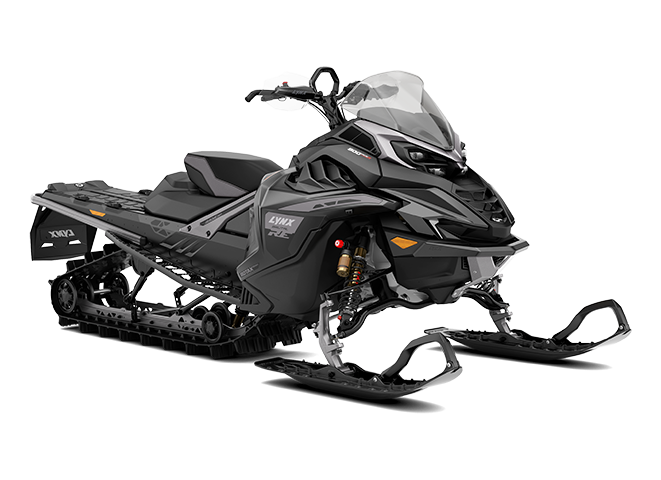
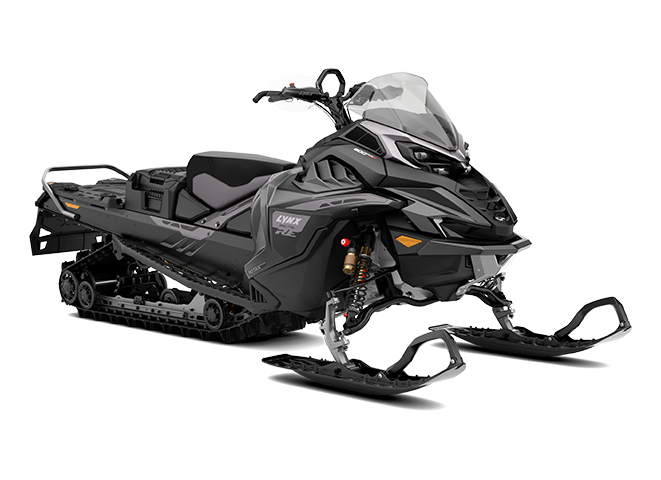
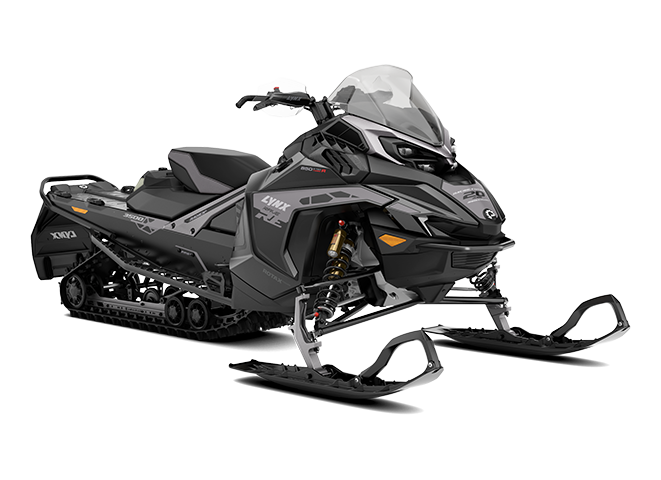
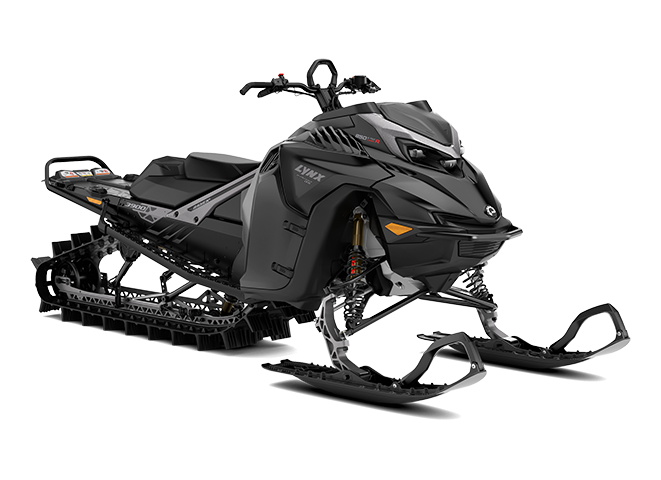
Overview
The 10.25" touch display is available on certain packages of the following Lynx models (sometimes as an option) in Europe:
69 Ranger, Adventure, Brutal, Commander, Rave, Shredder, Xterrain
The Trail, Crossover, Utility and Deep Snow models offer virtually the same features on the display. The only difference is that the Trail and Crossover models are equipped with a control module on the handlebar to control the display without touching the touch screen, while the Deep Snow models do not have this option.
Without a control module, it is not possible to control the display while driving and not possible to use the Applet Switcher, Ride Settings or the Voice Assistant (these features are accessible from the buttons on the control module).
The Applet Switcher is a functionality that allows you to easily switch between applets on the display using the dedicated button on the control module (available on Trail and Crossover models only). You can manage the available apps and their changing order in: Preferences > Applet Switcher Manager.
The Ride Settings function makes it easy to change certain vehicle parameters while riding using the dedicated button on the control module (available on Trail and Crossover models only). You can manage the available settings and their changing order in: Preferences > Ride Settings Manager.”
No, only the BRP GO! navigation app can be used on the display.
Yes, with touchscreen gloves (which contain conductive material on the fingertips).
No.
Interface navigation
You can display the gauge in two different formats:
- Full mode: the gauge is displayed in full screen
- Split screen mode: the gauge is displayed on the left third of the screen with an applet on the right
To change the gauge display format, you can either:
- Swipe the divider with your finger
- Access the Applet Menu (tap the icon at the bottom right of the screen in the Status bar)
- Use the Applet Switcher button (on the control module) to switch apps
Yes. An option to lock the touchscreen is available in the Quick Preferences (press the Quick Preferences icon in the Status bar). Once the lock mode is activated, a lock icon will appear on the screen. To unlock it, long press on the screen with your finger.
Yes. To ensure safe riding, some features are blocked when the vehicle is in motion. It is therefore not possible to do the following actions while riding:
- Use the touchscreen
- Access the Preferences, Vehicle settings, Quick Preferences and Applet Menu
- Initiate phone calls
To add, switch or remove the extra gauge in the middle of the Full gauge screen, you have to long press (2 seconds) in the center of the screen (between the speed and the RPM gauges).
Connectivity
On your vehicle display:
1- Go to the Applet menu
2- Go to "Preferences"
3- Select "Bluetooth"
4- Select "Phone"
5- Select "Add New Devices". The display will then search for the device.
On your phone:
6- Go to your phone's Bluetooth settings
7- Make sure that Bluetooth is turned on
8- Select the Bluetooth name of your vehicle display in the list of available devices. It will be "BRP_the 4 last numbers of your Lynx’s VIN number".
9- A confirmation number will appear on the display and on the phone. Make sure the numbers match. Then, press "Pair" on your phone.
*Please note that:
- The pairing process can only be done when the vehicle is not moving.
- The pairing process only happens one time, as the display will automatically recognize and connect your phone the next times.
On your vehicle display:
1- Go to the Applet menu
2- Go to "Preferences"
3- Select "Bluetooth"
4- Select "Driver Helmet" or "Passenger Helmet"
5- Select "Add New Devices". The display will then search for the device.
On your headset:
6- Open your headset
7- Activate the Bluetooth pairing process on your headset device. Please refer to your model specific documentation for how to do this.
On your vehicle display:
8- Once the name of your headset appears on the display, select it. The connection between the display and the headset will then be launched.
9- A notification will inform you that the connection is successful!
*Please note that:
- The pairing process can only be done when the vehicle is not moving.
- The pairing process only happens one time, as the display will automatically recognize and connect your headset the next times.
On your vehicle display:
1- Go to the Applet menu
2- Go to "Preferences"
3- Select "Wi-Fi"
4- Select "Add New Network"
5- Select the network you’d like to connect to from the list that appears on screen and enter the password
First, make sure to connect your display to a Wi-Fi network. On your vehicle display:
1- Go to the Applet menu
2- Go to "Preferences"
3- Select "Wi-Fi"
4- Select "Add New Network"
5- Select the network you’d like to connect to from the list that appears on screen and enter the password
Then, initiate the software update.
1- Go to the Applet menu
2- Go to "Preferences"
3- Select "General"
4- If a software update is available, a red icon will be displayed on the "Software Update" button. If so, select "Software Update".
5- Press “Download Update” and the process will begin.
The system will automatically check if a new update is available when the display is connected to an Internet network and the "General" section (in "Parameters") is open. If a new software update is available, you will need to initiate the download process manually.
When your phone and headset are connected to the display via Bluetooth, you can:
- Initiate and receive phone calls
- Listen to music or podcasts
- Use the voice assistant
When your phone is connected to the display via a USB cable, you can:
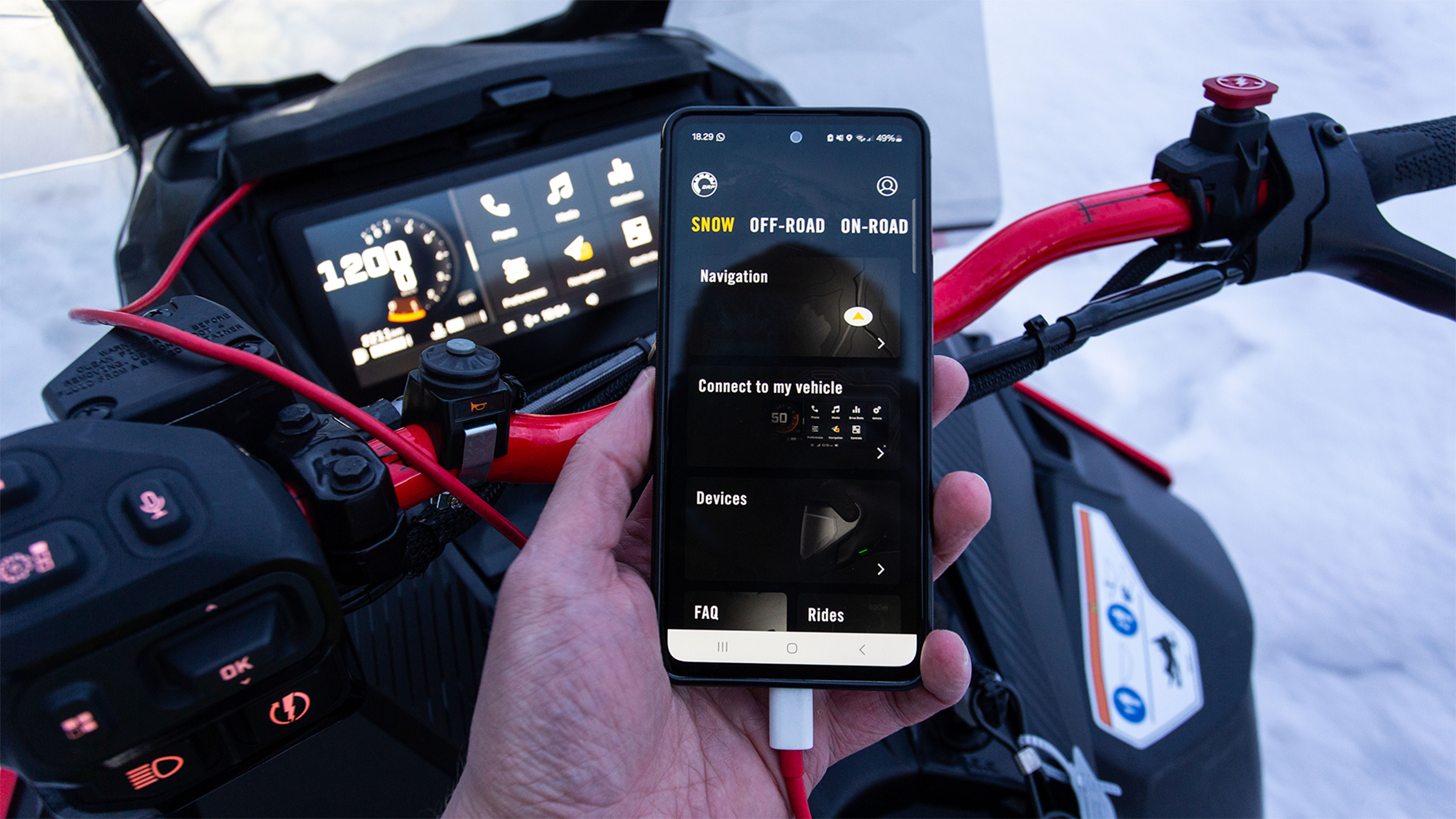
- Use the navigation features with the BRP GO! app
- Charge your phone's battery
Using the Phone Voice Assistant (available on Trail and Crossover models only), you can:
- Initiate phone calls ("Call...)
- Manage music ("Play...")
- Ask questions to Siri or Google Assistant ("What is the weather forecast for this afternoon?...")
Note: Some commands may require a network connection.
Headset
BRP recommends using Vibe, Sena, Cardo, or Nolan audio systems that support Bluetooth 5.0 or higher, as these have been tested to work with the 10.25″ touch display
The difference in terms of features between the Driver and Passenger helmet designations is that the Driver will be the only one to receive or initiate calls and use the Voice Assistant feature. But both will be able to listen to the audio.
Yes, changing the volume on the vehicle display via the control module will change the volume in the helmet. You can also adjust the volume directly on your helmet headset (driver and passenger helmets can have different volumes).
After the initial pairing of the headset to the display, we recommend that you always turn on the headset two minutes before or after starting the vehicle (therefore avoid turning on the headset at the same time as starting your vehicle). This could prevent potential Bluetooth connection issues.
Navigation
Yes, it's possible to use certain navigation features on the display without connecting a mobile device thanks to the Built-in GPS with Group Ride. To benefit from more navigation features such as route planning and turn-by-turn navigation, the free BRP GO! mobile app must be used (by connecting a phone via a USB cable).
Available features of the Built-in GPS with Group Ride (no phone connection required):
- See topographic map and snowmobile trails (in supported regions)
- View your position on the map
- Record your current trip (breadcrumb)
- Show/hide breadcrumbs from previous rides
- Create groups*
- Locate your friends and other BRP vehicles around*
Available features of the BRP GO! app (phone connection required):
- See topographic map and snowmobile trails (in supported regions)
- View your position on the map
- Record your current trip (breadcrumb)
- Plan routes
- Ride with turn-by-turn directions
- Create group
- Locate your friends (with cellular network only)
- Search and find points of interest
- Save custom locations
- Get riding statistics
- Redo past rides
- And more
*With vehicles equipped with the GPS module with Group Ride
The following video explains exactly how to use each tool with the 10.25" display: https://www.youtube.com/watch?v=lN2idXjvUcw
The built-in GPS is available as standard on 2025 and newer Lynx models equipped with the 10.25" display.
For 2023 and 2024 Lynx models equipped with the 10.25" display, it will be possible to purchase a GPS module and install it on the vehicle to benefit from navigation without a phone connection. It will also be necessary to update the display software to get the new features (the update will be available soon).
In Europe, all official snowmobile trails of Norway, Finland and Sweden are available.
Media
No, you must connect your phone via Bluetooth to listen to music. The USB connection of your phone does not allow music playback. USB sticks are also not supported.
Yes, start a playlist or an album on your phone on a streaming app, and then you can control the songs (Next/Previous) from the vehicle display. Of course, cellular network is required if the music is not downloaded to your device.
No, it is not possible to view music lists (playlists, artists lists) on the display. However, you will be able to see the "Now Playing" song and to manage the songs (next/previous, play/pause) directly on the display. We therefore recommend to start a playlist or an album before your ride.
Phone
Yes, a notification will inform you of a call and you can accept or decline the call.
Please note that you can accept or decline a call while riding with the control module (Trail models only), but the vehicle will have to be stationary if you want to answer via the touchscreen.
No, only the person who has the helmet defined as "Driver Helmet" will hear the phone call.
Yes, the same information shown on the phone will appear on the display.
No, there is no access to text messages on the display.